
Codelab / Chapter 09 / Lesson Document
Algorithms and File Operations
Candidate Obama Speaks at Google (a lesson of Sorts)
By combining these basic components of comparison and loop logic, we’ve created an algorithm. Algorithms are ways to solve problems using an unambiguous set of instructions. So, “Knight to Queen’s Bishop 3” rather than a more vague instruction like “attack the center”.
There are some rather formal definitions for this term, but we can informally and facilely say that all computer programs, including all the ones that you’ve written, are algorithms. More usefully, we use the term to describe more generalized ways to solve problems: we can think of the function that we wrote last week as an implementation of, let’s call it the nested-loop duplication detection algorithm.
There are a lot of algorithms.
Sorting
Different algorithms can solve the same problem. A very common class of algorithms that do functionally the same thing is sorting. In Python, we have a few built-in ways to sort things. For example:
>>> a = [1,3,2,5]
>>> a.sort()
>>> a
[1, 2, 3, 5]
But here, Python is doing the hard work under the table, hiding it through a method so you don’t have to know how it works. But behind that method is an algorithm. The sorting algorithm TimSort to be exact. People have been sorting things for tens or maybe hundreds of thousands of years and we’re actually still figuring out new ways to do it. TimSort was invented in 2002 and it’s a pretty good general algorithm. Other algorithms may be better under certain conditions. Some are optimized for using less memory. Others are better, on average, if we know that our data is almost sorted or if we don’t allow duplicate values. There’s a lot of dimensions to this. This is all much more complicated than I’d like to get into, so let’s just jump into a basic implementation.
How would we sort a list of numbers?

This is essentially the question that Presidential candidate Barrack Obama was asked at a campaign event at Google Headquarters in late 2007

I’d say that he’s got pretty competent campaign staff. Bubble sort is, in fact, usually a less efficient way to sort. But it’s easy to implement and it’s often used for teaching.
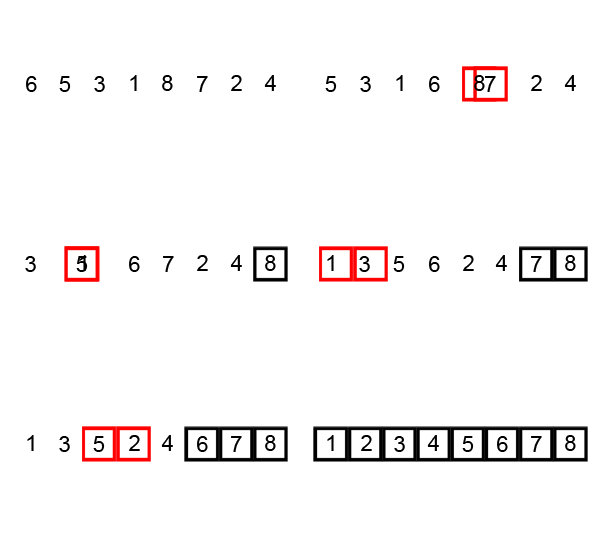
Or, let’s consider a much worse sorting algorithm: we can just use Python’s built-in random shuffle method to scramble the list and then check whether it’s sorted. If not, repeat the shuffle.
Obviously, this is much less efficient (time-wise at least) than the other sorts we’ve looked at. In the same way, there are more efficient ways to sort than Bubble Sort or Insertion Sort. In fact, there’s a fairly long Wikipedia article that just lists different sorting algorithms.
This is all to suggest that there can be different ways to solve the same problem, and that those different ways can have quite different performance properties. “Naive” algorithms that mimic human thinking are a good way to start thinking about problems, but they may or may not get you very far if you want to optimize performance.
Having given you a taste for all that, I want to say that there’s often not a very strong reason for us as digital humanists to dive too deeply into algorithms or efficiency. Whether it takes 30 seconds to run our text analysis or 3 seconds isn’t as consequential as whether Google returns search results in 30 seconds or 3 seconds. And so much of this, like Python’s hidden sort, is just already done for us by things like the Python built-in library and third-party modules (which we’ll talk about later).
It’s useful to look at the broad contours of these things even if we don’t understand them in any depth.
Files
Let’s do one useful new thing this week. User input from the command line is useful sometimes, but sometimes we want to do some heavier lifting.
Let’s read in a text file.
In Python, there’s a number of ways to do this. One of the easiest is to use the open function, which returns a “file object” that represents that file.
(Here are the Python docs for this)
The code for open is very simple. To read a file, we can do:
infile = open('file.txt', "r")
text = infile.read()
infile.close()
text will then be a string that holds the contents of the input file.
The call at the end to close isn’t even strictly necessary. It’s good practice to do it for optimal resource management, but Python will do it for you if you forget.
A common idiom to use for Python file handling that you’ll often see in examples is to use a with-as block. The last example is:
with open('file.txt', "r") as infile:
    text = infile.read()
All this does is structure the code so that you don’t forget to close the file.
The file object is also magically iterable, so we can treat it as a list that we can loop through. A common idiom is to use a for loop to go through text files line by line.
infile = open('file.txt', "r")
for line in infile:
    print(line.upper())
infile.close()
The “r” argument that you pass in to open tells Python that you want to read the file. To write, we can use “w” mode. This will overwrite the file if it already exists. We can use “a” for append to keep the existing content and just add to the end instead.
outfile = open('file.txt', "w")
outfile.write("Hazel is a good dog.\n")
outfile.close()
The \n at the end of that string indicates a new line.
See? Easy!

This way of working with files is mostly for text files, which are files whose contents match some kind of character encoding. Nowadays, this usually means some kind of Unicode (remember Chapter 02). Text files have the benefit of being easy for humans to read.
However, most files on your computer are not text files, but what we broadly refer to as binary files. This taxonomy is a little confusing, because of course every file is ultimately binary in that they are represented by ones and zeros. A text file is one containing binary data that is arranged along a specific encoding, but usually when we say binary file, we mean the ones that are not text files. Even more confusing, a common shorthand for a compiled, executable application file is “binary.”
So, in short:
- The Project Gutenburg plaintext copy of Much Ado About Nothing is a “text file”.
- The JPEG images of Rocky found throughout Codelab are “binary files”.
- The web browser that you’re using to read this document is a “binary.”